The browser cache is website data from the internet stored on your local disk.
Let's look at how to clear it and why it is necessary.
Every website on the internet contains information. It is «cached» in a dedicated place on the hard drive, and on the next connection to the site's server the browser tries to match the data it already has. If nothing has changed on the site in the last few hours or days, it will load much faster than if all the content had to be downloaded again.
Along with reducing loading time, the cache helps cut down internet traffic usage, since nothing new is downloaded.
A useful feature, considering that a modern person visits about 50 websites a day.
So the cache is definitely an important thing, since it significantly speeds up repeat loading of a site and reduces the amount of traffic used. All the downloaded information is stored on the disk, just in the browser's special format.
The cache needs to be cleared
Many files end up in the cache folder and take up too much space. Unneeded website passwords and various other information keep accumulating until there is far too much of it. All of this undoubtedly slows down the browser. Yes, the sites whose data has been saved will load faster, but what is the point if the browser itself runs slowly?
You should also consider the processor and the overall performance of the computer. Some PCs cannot store more than a certain amount of cache, which makes clearing it a mandatory procedure.
Additional tips:
- If you scan your computer for viruses weekly and find 1-2 of them, the cache should be cleared the same day. This lowers the risk of picking up a new virus;
- Before registering on important resources, write down your passwords and logins on a piece of paper, or create a separate document on your computer. Sometimes a person accidentally deletes their website logins along with the cache;
How to clear the cache in Firefox, Opera, Chrome, Safari and Internet Explorer: keyboard shortcut Ctrl+Shift+Del

Mozilla Firefox
To clear the cache in this browser, just two clicks are enough: Open Firefox - History - Clear.
Modern browsers let you clear audio, image and text elements while keeping your website passwords and logins.
Google Chrome
Below the cross that closes the program - in the top right corner there are three vertical dots; click them.
Then go to: settings - (on the left) - advanced - (at the bottom of the page) clear browsing data.
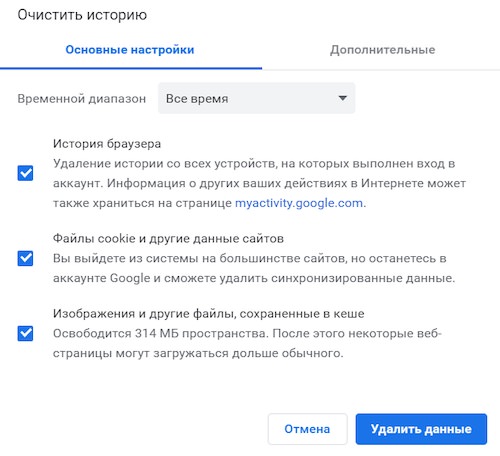
Important! When clearing data, the browser will show a window where it is important to select only what really should be deleted. If you tick all the boxes, including those on the «advanced» tab, you may lose your saved website logins.
The MacOS Safari browser
Special keyboard shortcut: Ctrl + Alt + E.
Press it - the «cache data management panel» opens.
If the shortcut does not work, go to the menu History - Clear History.